Search the words in pictures
Search the words in your photos.
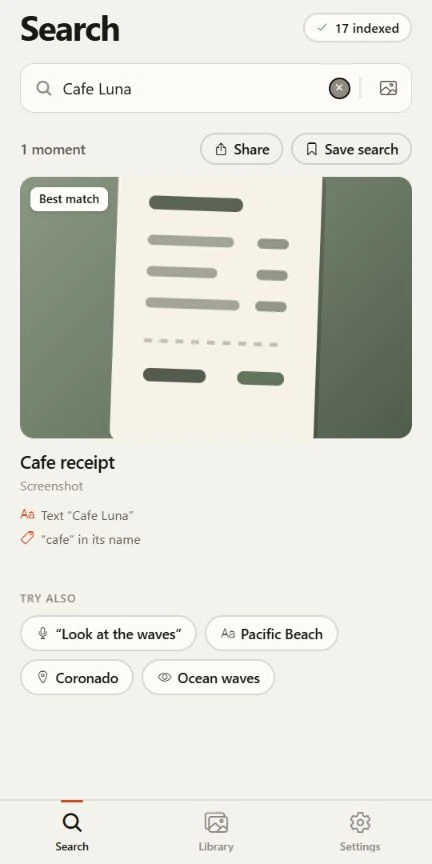
Receipts, tickets, signs, menus, whiteboards and screenshots. Lutri reads the text in your pictures on your phone, so you can search for a word you remember instead of a file name you do not.
Coming soon to iPhone and Android.
See pricing- Needs no model download
- Works offline
- Free to start
In three steps
How it finds the words
Lutri reads the text while it indexes.
As each picture is indexed, text recognition runs on your phone: Google ML Kit on Android and Apple’s Vision framework on iPhone. The words are stored in your private index, not sent anywhere.
You type a word you remember.
Lutri looks for it among the words it found. Capital letters do not matter, and neither do accents on Latin letters, so “osszesen” finds “Összesen” and “istanbul” finds “İSTANBUL”.
You open the picture and use the text.
The words Lutri found appear under the picture with a Copy text button. On a receipt it also picks out the total, so you can copy that on its own.
Examples
Try searching for
Anything that was printed or typed in a picture is fair game.
“Cafe Luna”
The name on a receipt or a sign.
“boarding gate”
A ticket or a screenshot of one.
“wifi password”
A label on a router or a note you photographed.
“osszesen”
A receipt total, with or without the accents.
Results depend on your own photos and are approximate.
The honest part
What to expect
Reading text from a picture is never perfect. Here is where it helps and where to double-check.
- Printed text works best.
- Small, blurry, curved or stylized text, and handwriting, can be missed or misread. Check the original before you rely on a number or a date, especially a receipt total.
- It works as soon as a picture is indexed.
- Text search does not use the optional visual model, so there is nothing extra to download.
- Collections gather the obvious ones.
- Receipts, tickets, documents, screenshots and duplicates collect themselves in your Library, so you can browse them without typing anything.
- The words stay in your private index.
- They are kept in the app’s private storage, out of iCloud and Google backups. Clear search index in Settings removes them without touching a photo.
- Free includes text search.
- The free version indexes up to 150 media items and shows the top 25 results for each search. Full Access removes both limits. A very broad search shows the closest 480 matches and asks you to add a word.
Questions
Text search questions
More answers are in the full list of questions and on the support page.
How accurate is the text it reads?
Recognition is approximate. Printed text in a clear photo works best; small, blurry or stylized text, and handwriting, can be missed or misread. Check the original before relying on a number or a date.
Does text search need the visual model?
No. Text recognition does not use the optional model, so it works as soon as your media is indexed.
Can I copy the text from a photo?
Yes. Open the result and the text Lutri found appears under the picture with a Copy text button. For receipts, Lutri also finds the total and offers to copy it.
Where does the text go?
It stays in a private search index inside the app on your phone, kept out of iCloud and Google backups. It leaves the phone only if you choose to copy or share it. Clear search index in Settings, or uninstalling Lutri, removes it.
Find it by what it says.
Free to start. No account needed. Your photos stay on your phone.
Coming soon to iPhone and Android.